
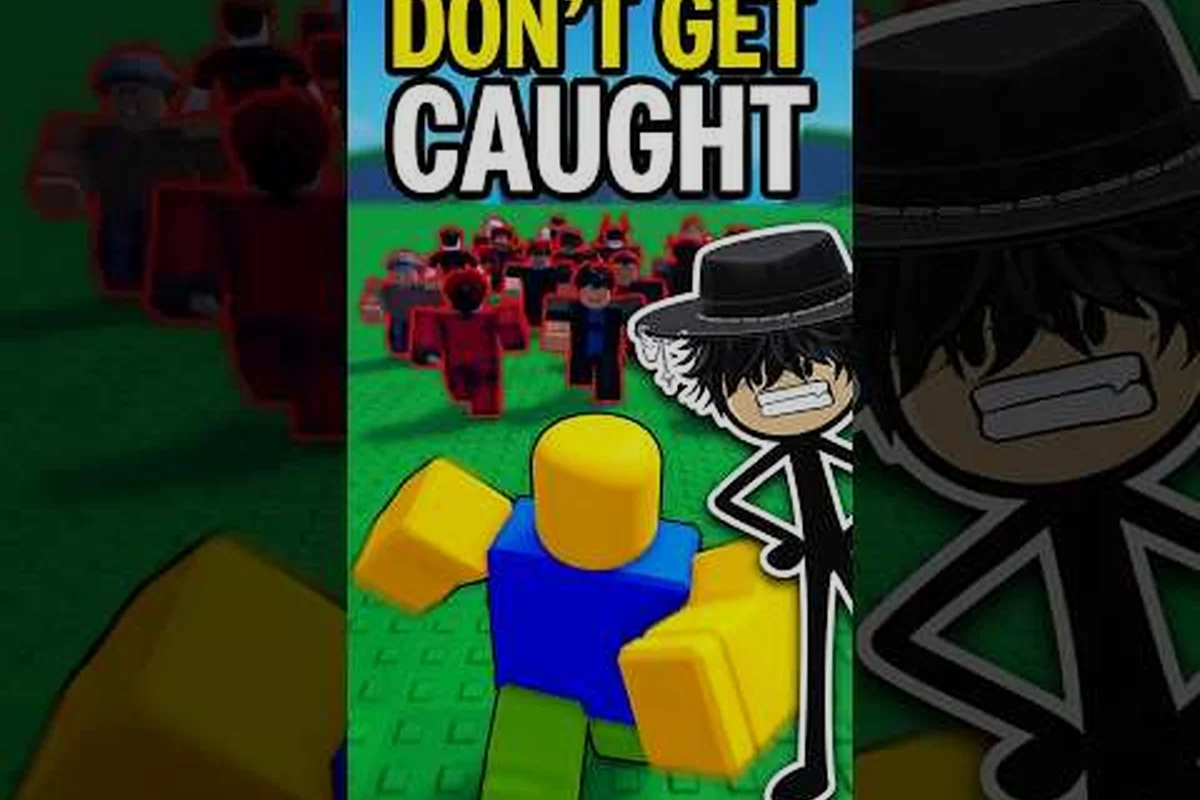
Getting a Huss Valley play with friends boost running changes the entire tag-survival loop, because coordinated Runners can split the Chaser's attention while farming gems far more efficiently than random lobbies ever allow. The fastest route is a private server, which gives you full control over who enters, what settings apply, and how long each round lasts. This guide walks through the setup, then dials in graphics and sensitivity so every vault, slide, and escape feels responsive.
Why Private Servers Unlock the Best Friend Boost
Private servers solve the biggest friction point in Huss Valley: public lobbies fill with strangers, skill gaps widen, and the Chaser role rotates unpredictably. When you host a private server, you decide the exact player list, which means every Runner knows the plan and every Chaser understands the rotation. According to the official Huss Valley game page, the game supports up to 16 players per lobby, so a private server can host a full friend group without queue pressure or random joins.
The friend boost itself comes from coordinated play rather than a hidden multiplier. When four or five friends run together, they can chain Vault (Space) and Slide (C) inputs through the industrial arena of Folk Valley, forcing the Chaser to commit to one target while the others complete tasks. Community reports consistently show that coordinated groups earn gems faster because fewer rounds end in early eliminations, and the Journal (J) lets every player track objectives without voice call confusion.
A private server also removes the waiting room bottleneck. Public lobbies sometimes stall while the game waits for enough players, but a private server starts the moment you and your friends are ready. That means more rounds per hour, which compounds into more gems and faster progression through the Gem Shop.
Setting Up a Private Server Step by Step
The setup flow is straightforward, but small mistakes can lock friends out of the lobby. A common failure point is the Friends permission setting: if the host's Roblox privacy settings are set to No One for "Who can join me in experiences," the invite link will silently fail even when the private server itself is configured correctly. Another frequent issue is copying the link before the server has finished provisioning — Roblox sometimes returns a stale URL that redirects to a random public lobby instead. Follow these steps in order, and verify the server name appears in the Servers tab before sharing anything:
-
Open the Huss Valley page on Roblox and scroll to the Servers tab
-
Select Create Private Server, then name it something your group recognizes
-
Copy the invite link and share it in your group chat or Discord
-
Set the server to Friends or Invite Only depending on how open you want the lobby
-
Join the server first, then have friends follow through the link
One common issue is that players click the link before the host has fully loaded into the lobby. If a friend sees a black screen or a "server is full" message, have them wait 10 seconds and rejoin. The private server remains active as long as at least one player is inside, so the host should stay until everyone has loaded.
Private Server vs Public Lobby Comparison
The table below breaks down why a private server is the better choice for friend groups: when you host a Huss Valley lobby, every setting from Chaser rotation to round timer is yours to tune, and the gem farming multiplier from coordinated Runner callouts means you can clear a Run phase with all four Gems banked instead of watching a random teammate die to the first Chaser ambush.
| Feature | Private Server | Public Lobby |
|---|---|---|
| Player control | Full invite list | Random matchmaking |
| Round start speed | Immediate when ready | Waits for lobby fill |
| Chaser rotation | Agreed by group | Random assignment |
| Gem farming efficiency | Higher with coordination | Lower with randoms |
| Voice coordination | Easy with friends | Difficult with strangers |
The difference is most visible in the Chaser role. In a public lobby, a skilled Chaser can wipe a disorganized team in under a minute. In a private server, your group can agree on a rotation so everyone gets practice as both Runner and Chaser, which builds skill faster than random assignment ever could.
Tuning Graphics Settings for Smoother Chases
Huss Valley's industrial arena is dense with geometry, lighting, and particle effects, so poor graphics settings can cause frame drops exactly when you need to react to a Slide (C) or Vault (Space) input. The goal is to keep frame rate stable above 60 FPS while preserving enough visual clarity to spot the Chaser across the map.
Start by lowering Shadow Quality and Post-Processing first. These two settings consume the most GPU headroom in Roblox and rarely affect gameplay readability. Next, reduce Render Distance to medium, because the Folk Valley map is compact enough that you do not need to see across the entire arena. Finally, disable Motion Blur entirely, since it smears the Chaser's movement during fast camera turns.
The table below shows a recommended priority order for graphics adjustments, ranked by how much each setting taxes your GPU relative to the competitive advantage it provides during a Chaser pursuit. Because Huss Valley's arena throws fog, sparks, and flickering industrial lights at you mid-chase, a single misconfigured option can drop you from 60 FPS to 30 right as a Slide (C) input is required — so apply these changes in sequence, starting with the highest-impact GPU hogs first.
| Priority | Setting | Recommended Value | Impact on Performance |
|---|---|---|---|
| 1 | Shadow Quality | Low | High |
| 2 | Post-Processing | Off | High |
| 3 | Motion Blur | Off | Medium |
| 4 | Render Distance | Medium | Medium |
| 5 | Texture Quality | Medium | Low |
If you play on a laptop or integrated graphics, drop Texture Quality to Low as well. The game's art style remains readable at low texture settings, and the performance gain is worth the visual trade-off. Players on dedicated GPUs can keep textures at Medium or High without issue.
Graphics Settings by Device Type
Different hardware needs different tuning. Use this breakdown to match your setup: a low-end laptop with integrated graphics should disable Shadow Quality and Post-Processing entirely, because those two render passes consume the most GPU time per frame in Huss Valley's engine while adding the least visual clarity at 720p. A mid-range PC can afford Low shadows and Medium render distance to hold 90 FPS during four-player co-op sessions, where extra draw calls from teammates' cosmetic effects and projectile trails spike frame times. High-end rigs targeting 144 FPS should still keep Post-Processing at Low rather than High, since bloom and motion blur add roughly 8–12 ms of frame latency that directly hurts flick-shot aim consistency when playing with friends on a boosted private server.
| Device Type | Shadow Quality | Post-Processing | Render Distance | Target FPS |
|---|---|---|---|---|
| Low-end laptop | Off | Off | Low | 60 |
| Mid-range PC | Low | Off | Medium | 90 |
| High-end PC | Medium | Low | High | 144 |
| Mobile / tablet | Off | Off | Low | 60 |
The key insight is that Post-Processing and Shadow Quality matter more than any other setting. Turning those off gives the biggest frame rate jump for the least visual cost, which is why they sit at the top of the priority table.
Sensitivity Settings That Keep You Alive
Sensitivity in Huss Valley is not just about aim, because the game is a tag-survival loop where camera speed determines how fast you can react to the Chaser's approach. Too high, and you overshoot your turns. Too low, and you cannot track a Chaser who vaults over a railing behind you.
Start with a Mouse Sensitivity between 0.4 and 0.6 in the Roblox settings menu, then adjust based on your role. Runners benefit from slightly higher sensitivity because they need to check corners and switch directions quickly. Chasers benefit from slightly lower sensitivity because they need smooth tracking when a Runner jukes left and right.
The table below shows recommended sensitivity ranges by role, but the numbers only make sense once you understand how Camera Sensitivity interacts with Mouse Sensitivity in Huss Valley's Roblox input stack. Mouse Sensitivity governs raw cursor displacement, while Camera Sensitivity applies a multiplier to the in-game camera rotation speed — so a Runner running 0.5 mouse with 0.8 camera will swing the view noticeably faster than a Chaser at 0.4 mouse with 0.5 camera, even though both fall inside their listed bands. If you play with friends in a private server, coordinate these ranges before the round starts: a Runner who cannot complete a 180-degree corner check in under half a second will get tagged by a Chaser using Lunge, and a Chaser whose tracking overshoots during a juke will lose the tag window entirely.
| Role | Mouse Sensitivity | Camera Sensitivity | Notes |
|---|---|---|---|
| Runner | 0.5 - 0.7 | 0.6 - 0.8 | Fast direction checks |
| Chaser | 0.3 - 0.5 | 0.4 - 0.6 | Smooth target tracking |
| Hybrid | 0.4 - 0.6 | 0.5 - 0.7 | Balanced for both roles |
Controller players should set Camera Sensitivity to the middle of the range and then adjust by 0.1 increments after a few rounds. The official page lists full controller mapping, including Triangle/Y for the ability, so sensitivity changes should not interfere with ability inputs.
Finding Your Personal Sensitivity Sweet Spot
The best way to find your ideal sensitivity is a simple drill. Load into a private server alone, pick a landmark like a shipping container or a railing, and practice flicking your camera to that landmark from different angles. If you consistently overshoot, lower sensitivity by 0.05. If you undershoot, raise it by 0.05. Repeat until you can land on the landmark in one motion.
This drill takes about five minutes and pays off in every subsequent round. Players who skip sensitivity tuning often report feeling "behind" the action, because their camera cannot keep up with the Vault (Space) and Slide (C) movement chains that define high-level Huss Valley play.
Coordinating Friend Groups for Maximum Gem Gains
Once your private server is live and your settings are dialed in, the next step is coordinating your group so every round produces maximum gems. The core principle is role specialization: assign one or two players as dedicated Chasers for a set of rounds, then rotate so everyone gets equal practice and equal gem income.
Runners should split into pairs and take different routes through the industrial arena. One pair heads toward the high ground while the other stays low, forcing the Chaser to choose a target. When the Chaser commits, the other pair completes tasks and banks gems. This split-pressure strategy works because the Chaser can only chase one target at a time, and the Get Task (T) input lets every Runner know their objective without stopping to type.
The Huss Valley earn gems as chaser guide explains the gem multiplier differences between roles, which matters when you are planning rotations. Chasers earn gems differently than Runners, so a fair rotation keeps everyone's income balanced over a long session.
Communication Cadence That Works
Voice chat is the fastest way to coordinate, but not every group uses it. If you play without voice, establish a simple callout system before the round starts. For example, "high" means the Chaser is on the upper walkways, "low" means ground level, and "split" means both pairs should break in opposite directions. Keep callouts short so nobody has to stop moving to type.
The Leaderboard (Y) input lets you check who is alive and who has been caught, which is useful for adjusting your route mid-round. If two Runners are already down, the remaining pair should play conservatively and prioritize task completion over aggressive movement.
Advanced Private Server Settings and Session Planning
Private servers in Huss Valley do not expose a deep settings menu, but you can control the session flow through group agreements. Decide before the session starts how many rounds you will play, who will be Chaser first, and whether you will use any codes. The official page lists active codes 1500LIKES, 1000LIKES, and UPDATE4, with the next code planned at 2000 likes, so redeeming those before a session gives everyone a small boost.
Session length matters for gem farming efficiency. Community data suggests that 60 to 90 minute sessions produce the best gem-per-hour returns, because shorter sessions waste time on setup and longer sessions lead to fatigue and sloppy movement. Plan a break every 30 minutes to keep reactions sharp.
The how many players per lobby guide covers the difference between solo queue, party mode, and full 16-player lobbies, which helps you decide whether to run a small private group or open the server to more friends. A four to six player private server is the sweet spot for coordinated gem farming, because it keeps rounds fast and communication tight.
Session Planning Table
Use this table to plan a typical friend session: start by locking in a 4-6 player group so the chaser rotation cycles every 3 rounds without anyone idling long enough to lose the huss valley play with friends boost multiplier, then set a 60-90 minute window because gem-per-hour returns drop sharply once reaction times fade past the 30-minute mark. Agree on break cadence before the first round begins — a 30-minute pause pattern keeps sensitivity settings and aim reactions sharp, which matters more in Huss Valley than raw gear score. Finally, redeem all friend codes before the session starts so every player enters with the free boost already active, eliminating the mid-session menu diving that fragments voice comms and stalls round flow.
| Session Element | Recommendation | Why It Matters |
|---|---|---|
| Group size | 4-6 players | Fast rounds, clear comms |
| Session length | 60-90 minutes | Best gem-per-hour return |
| Break cadence | Every 30 minutes | Keeps reactions sharp |
| Chaser rotation | Every 3 rounds | Fair gem income |
| Code redemption | Before session | Free boost for everyone |
Planning these elements before the session starts removes the mid-session friction that kills momentum. For example, a 5-player group that locks its chaser rotation in advance avoids the 10-15 second dead air after each round where someone asks "who's chasing next?" — and in Huss Valley, that idle window is exactly when the play with friends boost multiplier decays fastest, since the boost tracks consecutive active rounds rather than raw elapsed time. When everyone knows the rotation and the break schedule, rounds flow continuously, the boost never drops a tier, and gems accumulate measurably faster across a 90-minute window.
Frequently Asked Questions
Does Huss Valley have a friend boost multiplier?
Huss Valley does not apply a hidden multiplier for playing with friends, but coordinated groups earn gems faster because they survive longer and complete more tasks per round. The boost comes from efficiency, not a numeric bonus, which is why private servers with a coordinated group outperform public lobbies.
How do I set up a private server in Huss Valley?
Open the Huss Valley page on Roblox, go to the Servers tab, and select Create Private Server. Name the server, copy the invite link, and share it with friends. Set the server to Invite Only so only your group can join, then load in first so the lobby is ready.
What are the best graphics settings for Huss Valley?
Turn off Post-Processing and Motion Blur, set Shadow Quality to Low, and keep Render Distance at Medium. These changes deliver the biggest frame rate gains while preserving enough visual clarity to spot the Chaser across the Folk Valley arena.
What sensitivity should I use in Huss Valley?
Start with Mouse Sensitivity between 0.4 and 0.6, then adjust by role. Runners benefit from 0.5 to 0.7 for fast direction checks, while Chasers prefer 0.3 to 0.5 for smooth tracking. Use the landmark flick drill to find your personal sweet spot.
Can I play Huss Valley with friends without a private server?
Yes, you can join a public lobby together, but you may not land in the same server if it is full. A private server guarantees your group stays together and removes random players, which makes coordinated gem farming far more consistent.
The Huss Valley play with friends boost is not a button you press, but a setup you build. A private server gives you control, tuned graphics settings keep your reactions sharp, and the right sensitivity makes every vault and slide feel natural. Put those three pieces together, and your friend group will farm gems faster than any public lobby can match.